How to get manager access to a client’s Google Business Profile: the agency guide
Get access right in week one and everything after is easier. The exact steps to send a client, what to do when nobody knows who owns the profile, and the Google rules every agency has to follow.
By the DrawnLocal team · · Updated · 14 minute read
Owner or manager: which access an agency needs
A Business Profile has three kinds of user. Only one person can be the primary owner.
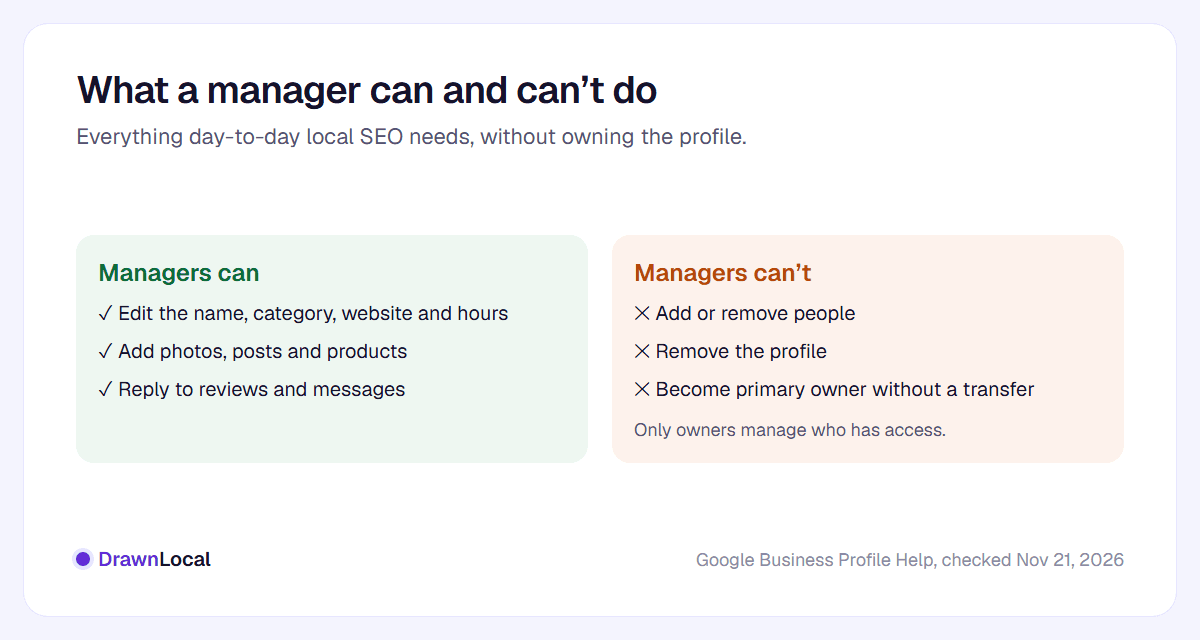
| Role | What it can do | Who should hold it |
|---|---|---|
| Primary owner | Everything an owner can, and it can only change through a transfer | The business owner |
| Owner | Edit the profile, reply to reviews, see performance, add or remove people, remove the profile | The owner and, at most, a trusted manager at the business |
| Manager | The same edits as an owner, including the name, category, website, hours, photos, posts, products, reviews and messages, but can’t add or remove people or remove the profile | Your agency |
Google’s help page notes that managers were formerly called site managers. Manager access covers everything day-to-day local SEO needs, and it’s what Google’s third-party policy asks agencies to use: the business is the owner and the agency is the manager.
Google Business Profile manager access, step by step
Paste these steps into your welcome email with your agency’s address filled in:
- Sign in to Google Business Profile with the Google account that owns the profile.
- Select More (the three dots), then Business Profile settings, then People and access.
- Select Add (the person icon) at the top left.
- Enter the agency’s email address.
- Under Access, choose Manager.
- Select Invite.
You’ll get an email; accept it while signed in to the agency Google account you’ll use for every client. Until then the invite shows as pending on the client’s side. If the client can’t find the option in a browser, Google suggests looking in the Google Maps app.
Common delays are invites sent to the wrong address, or accepted from a personal account. Use one agency Google account (or an organization account, below) so access doesn’t leave with a staff member.
The waiting periods to plan around
Three timers decide how fast access really moves. Put them in the client’s onboarding plan, so nobody expects edits on day one when a request is still running.
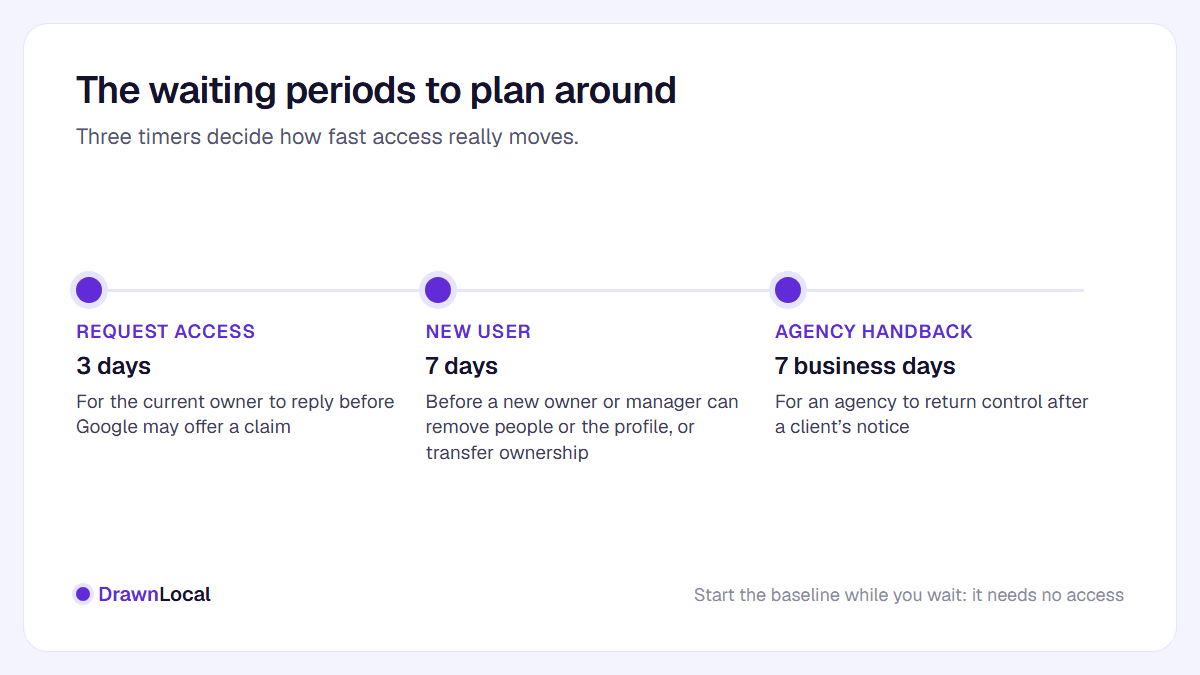
None of them stops the baseline. Rankings, heat maps and reviews come from public search results, so you can measure while you wait.
An invite request you can send the client
Clear instructions prevent a lot of invite problems. Send the steps with your address already in them:
“Hi [name], to start work on your Google profile we need you to add us as a Manager. You stay the owner, and we never need your password. It takes two minutes:”
“1. Sign in to Google Business Profile with the account that owns your profile. 2. Select More (the three dots), then Business Profile settings, then People and access. 3. Select Add, enter [agency email], choose Manager and select Invite.”
“If you can’t find the option on a computer, try the Google Maps app. Reply when it’s done and we’ll accept it the same day.”
Written consent: wording that covers Google’s rules
Google requires the owner’s express consent before an agency claims or manages a profile, and says verbal consent isn’t enough. Put it in the signed proposal, or get a short reply to an email like this:
“Please reply ‘I agree’ to confirm three things. [Business] authorizes [agency] to manage its Google Business Profile as a Manager. [Business] remains the owner. And you understand that Google Business Profile itself is free, and our fee covers our work managing it.”
Save the reply with the client’s file. It covers consent and the free-profile notice in one step. This isn’t legal advice; your contract template should carry the same points.
When nobody knows who owns the profile
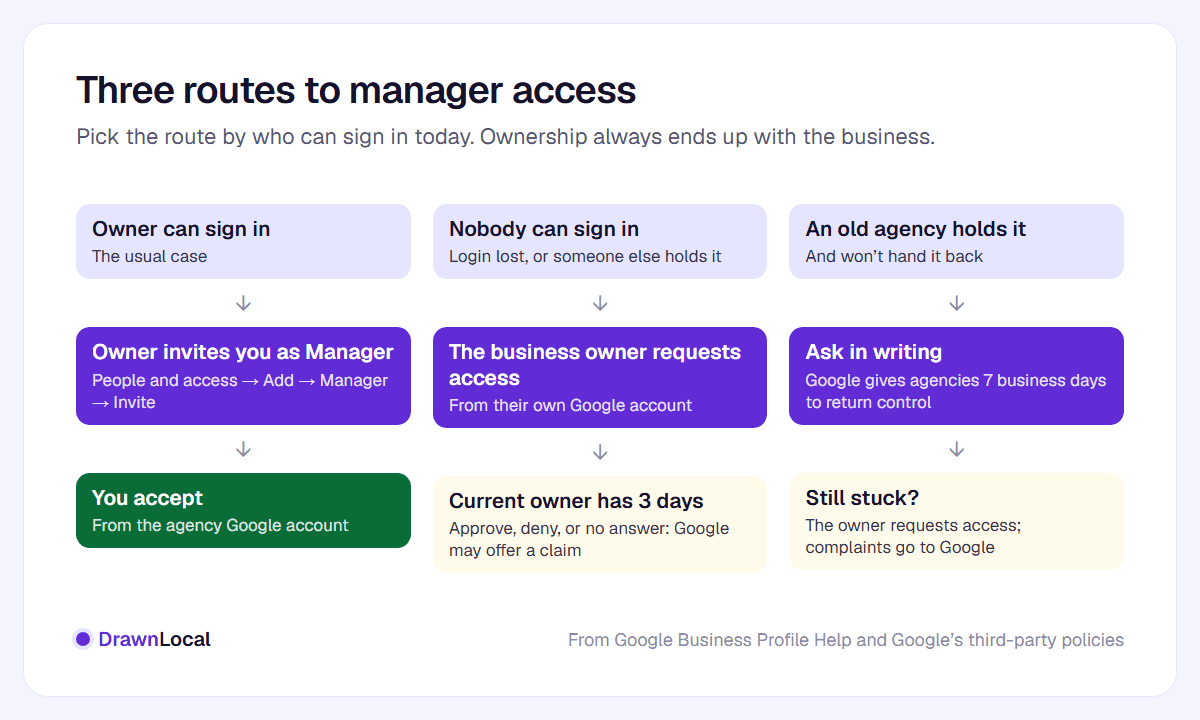
Small businesses often lose track: a nephew set it up, a former employee owns it, or an old agency still holds it. Have the business owner request access from their own Google account, so ownership ends up with the business, not with you:
- In Google Business Profile, choose to add a business and enter the business name and address.
- Pick the business from the list. If it’s already managed, Google shows “Someone else may manage this Business Profile.”
- Select Request access, complete the form and submit it.
The current owner is emailed and has 3 days to respond. If they approve, the requester can manage the profile; if they deny it, the requester can still suggest edits or appeal. If there’s no answer after 3 days, Google may offer the option to claim the profile from the confirmation email (View request, then Verify), though it says that option isn’t always available. Service-area businesses without a storefront go through Google’s support team instead, choosing “Transfer ownership of listing”.
If a former agency holds the profile, ask it in writing first. Google’s third-party policy gives agencies 7 business days from the client’s notice to hand back exclusive control and remove their own access.
Why an agency shouldn’t own a client’s profile
Some agencies still ask for ownership “to make things easier”. Google’s policy rules it out: the business must keep ownership at all times. The practical reasons matter just as much:
- The profile is the business’s asset. Its reviews, photos and history belong to the business, not to whoever manages it.
- People and agencies leave. If the owner of the profile disappears, the business can lose control of its own listing.
- Trust. A client who knows they can remove you at any time is more relaxed about hiring you.
- It changes nothing day-to-day. Managers can do the edits, posts, photos and review replies that local SEO needs.
Access to the other Google tools
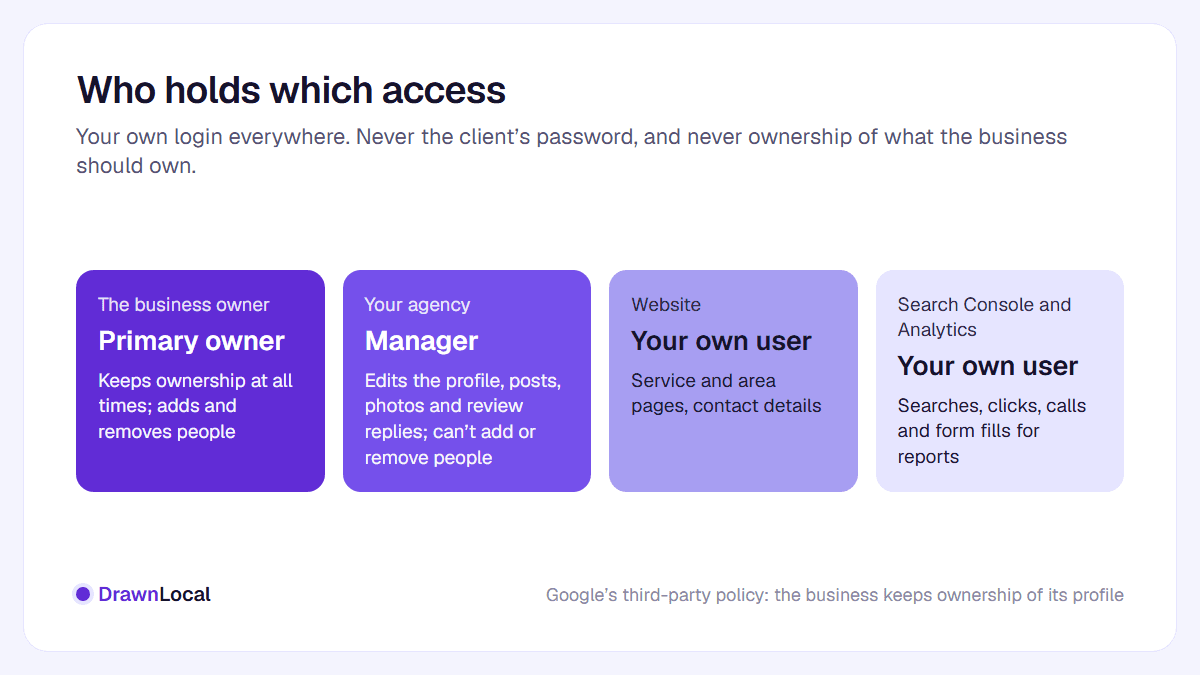
The profile is one of four logins you’ll need. The same rule applies to each: your own user, never the client’s password.
| Tool | Where the client goes | Access to ask for |
|---|---|---|
| Google Search Console | Settings, then Users and permissions, then Add user | Full user |
| Google Analytics | Admin, then Access management for the account or property, then Add users | Viewer, or Editor if you’ll set up tracking |
| The website | The website platform’s user or team settings | Your own editor or admin user |
Send all four sets of steps in one email, so the client can do them in one sitting. The onboarding checklist has the full welcome email.
Replying to reviews on the client’s behalf
Google’s third-party policy asks agencies to get explicit approval before replying to reviews for a client. In practice, agree three things in writing during onboarding:
- Whether you reply at all, or only draft replies for the owner to post.
- The tone: how formal, whether to sign with a name, and what to say about refunds or disputes.
- Which replies need the owner’s yes first, such as anything about money, safety or a legal threat.
Keep the approval with the consent email. How to respond to negative reviews has templates for the replies themselves.
Businesses with several locations
Each location has its own profile, so access is per location. Businesses with many locations can keep them in groups, and the owner can add the agency to a whole group rather than to each profile one by one.
Check that every location ends up with the same agency account. A single location left on an old login is easy to miss and causes problems months later. Multi-location local SEO covers the rest.
Warning signs in a profile’s access list
When you first see who has access, look for these. Each is worth raising with the owner in week one:
- The primary owner is someone outside the business, such as a former employee or an old agency.
- Users the owner doesn’t recognize.
- A personal email address the business can no longer reach.
- More than one agency with access.
- No owner at the business at all, only managers.
Only owners can remove people, so the business owner has to make these changes. Send them the names and a one-line reason for each.
Managing many clients: use an organization account
Google recommends that third-party agencies use a single organization account to manage all their profile groups. Staff join the organization as owners or members, and you can give each person access to specific profiles or groups, which keeps access tidy as clients and staff come and go.
An organization account can’t own a profile directly, which fits the rule that clients keep ownership. Agencies managing large numbers of profiles can also use the Business Profile API for bulk changes.
Questions owners ask before giving access
Owners are right to be careful. Short, honest answers to the questions that come up:
- “Can you see my email?” No. Manager access covers the Business Profile only, not the Google account’s email or anything else in it.
- “Can I remove you?” Yes, at any time, from People and access. You stay the owner.
- “Will you change things without asking?” Only what we agree in the plan. Anything else, and every review reply, gets your approval first.
- “Does Google charge for this?” No. Business Profile is free; our fee covers our work.
- “What happens if we stop working together?” We remove our own access and hand everything back, as Google’s policy requires.
A week-one access timeline
How the first week can run when the owner can sign in:
| Day | What happens |
|---|---|
| 1 | Consent signed; invite steps sent for the profile, Search Console, Analytics and website |
| 1–3 | Baseline recorded from public results while invites arrive |
| 2–4 | Invites accepted from the agency account; access tracker updated |
| 3–5 | Access list checked with the owner; unknown users removed by the owner |
| 5–7 | Profile audit, then the first agreed fixes |
If the owner can’t sign in, add the 3-day request window, and expect the first edits to slip into week two.
If the profile is suspended
Sometimes the first thing access reveals is a suspended profile. Don’t start ranking work until it’s sorted: nothing else matters while the business is missing from Maps.
Find the cause first, such as a keyword-stuffed name or an address that breaks Google’s rules, then fix it before asking Google to review it. Google Business Profile suspended? walks through the steps.
A checklist for every new profile
Run through this once access is in place, before any work starts:
- Written consent is saved, with the date.
- The business holds primary ownership.
- The agency is a Manager, on the agency account.
- Unknown users have been removed by the owner.
- Review-reply approval is agreed in writing.
- Search Console, Analytics and website access are in place.
- The baseline is saved and dated.
- The access tracker row is complete.
Eight ticks, and the client’s access is in order for the life of the contract.
Access problems and how to fix them
A few problems come up often. Quick fixes for each:
| Problem | Likely cause | Fix |
|---|---|---|
| The invite never arrived | Sent to a typo, or filtered as spam | Check the address, ask the client to resend, check the spam folder |
| Accepted from the wrong account | A personal Google account was signed in | Ask the client to remove it and invite the agency account |
| The client can’t find People and access | A different view of Business Profile | Try the Google Maps app, as Google suggests |
| The owner left the business | Ownership sits with a former employee | The current owner requests access from their own account |
| An old agency won’t reply | No written notice sent | Send written notice; Google gives agencies 7 business days |
| Two profiles for one location | An old or duplicate listing | Ask the owner to request access to both, then sort out the duplicate |
Note each fix in the client’s file. The same client will need it again when staff change.
If none of these fit, check Google Business Profile Help for the current steps before you guess. Menus and labels change from time to time, and an out-of-date screenshot from a forum can send the owner down the wrong path.
Keep a simple access tracker
Once you manage several profiles, a tracker stops access from drifting. One row per client, with these columns:
| Column | What to record |
|---|---|
| Client and location | One row per profile |
| Primary owner | The person at the business, and their email |
| Agency role | Manager, and the date the invite was accepted |
| Consent | Where the written consent is saved, and its date |
| Other users | Anyone else with access, and whether the owner approved them |
| Review replies | Approved by the client: yes or no, and when |
| End date | When access was removed, if the client left |
Check the “other users” column every quarter. It’s the quickest way to spot an old agency or a former employee who still has access.
Before the client signs: no access needed
You don’t need access to pitch. A heat map, rankings, reviews against competitors and a short audit all come from public results, and they make a stronger case than a login would.
Google’s policy also forbids claiming a profile to push a business into becoming a client. Ask for access only after the proposal is signed and consent is in writing.
One agency login, or an organization account?
A solo founder can manage every client from one agency Google account, used only for client work. It keeps access separate from personal email and makes handovers simple.
Once staff join, move to an organization account, as Google recommends for agencies. Each person gets their own login with access to the clients they work on, and removing someone who leaves takes one step instead of a password change across every client.
Google’s rules for agencies, in plain words
Google’s third-party policies apply to anyone managing profiles for others. The ones that matter most:
- The client keeps ownership or co-ownership of the profile at all times. You’re the manager.
- You need the owner’s express consent before you claim or manage a profile. Verbal consent isn’t enough: keep it in writing, such as a signed proposal or an email.
- Get explicit approval before you reply to reviews on the client’s behalf.
- Never claim a profile first to push a business into becoming a client.
- Never share passwords, and remove profiles from your account once you stop managing them.
- If you charge a fee for managing the profile, tell the client in writing that Business Profile itself is free, and show your fee on invoices.
- Agencies that mainly serve small businesses must share Google’s “Working with a third party” notice with clients.
- Never guarantee top placement on Google, or promise that a profile will always appear.
- Report each client’s Business Profile data on its own, and never share it with other clients.
- When a client leaves, return exclusive control within 7 business days and remove your own access.
Google can review agencies at any time and contact their clients. Serious or repeated breaches can cost an agency its ability to manage profiles.
Measure while the invite is pending
Don’t lose the first week to a pending invite. Public results are enough for the baseline. Here’s a live example, checked with DrawnLocal’s free heat map on Nov 21, 2026. A Boise plumbing company, for “plumber”, is first at its address and in the top 3 at 7 of 9 points.
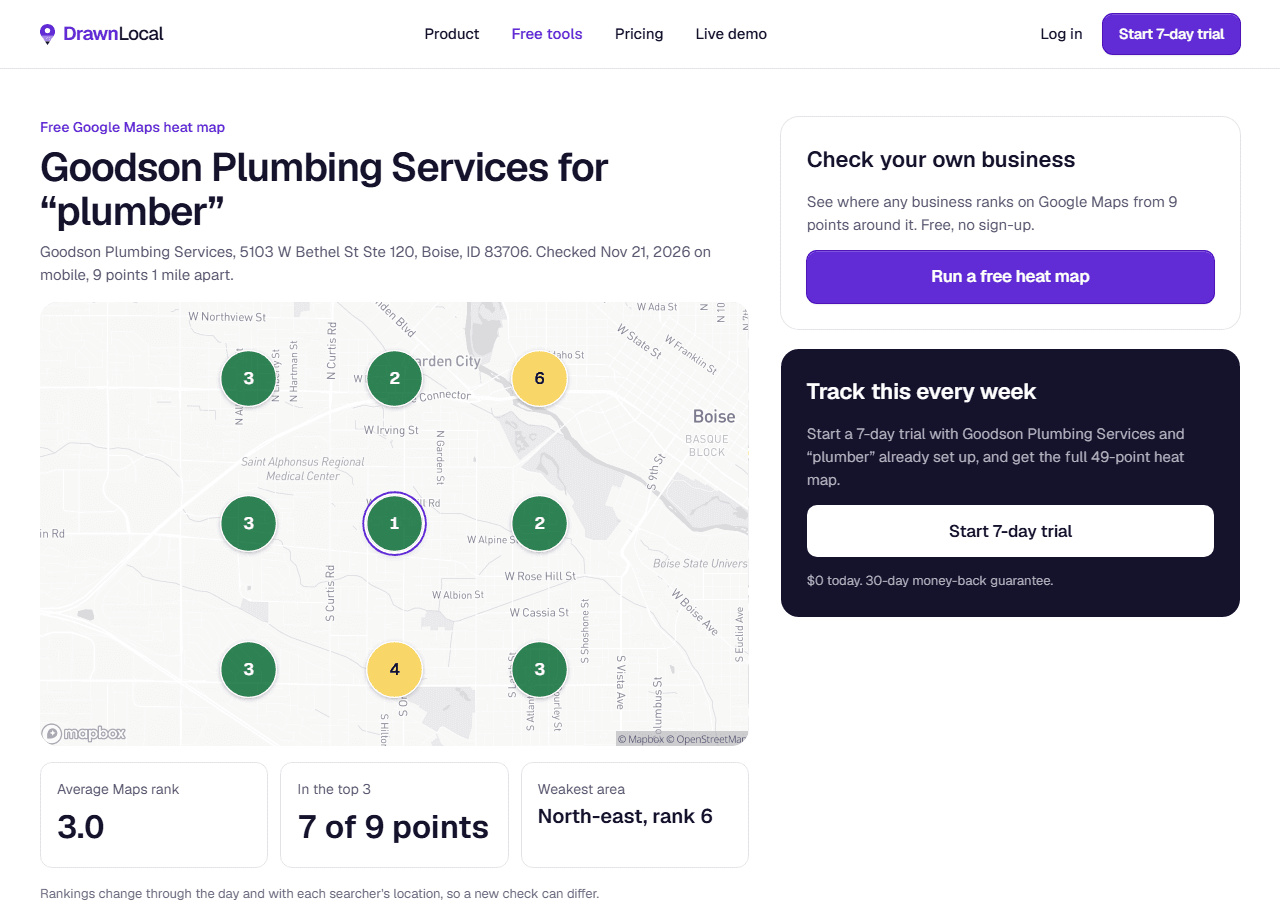
Save it with the date, then run the same keyword and grid every week. When access arrives, you’ll already know where the business stands.
Audit the profile as soon as access lands
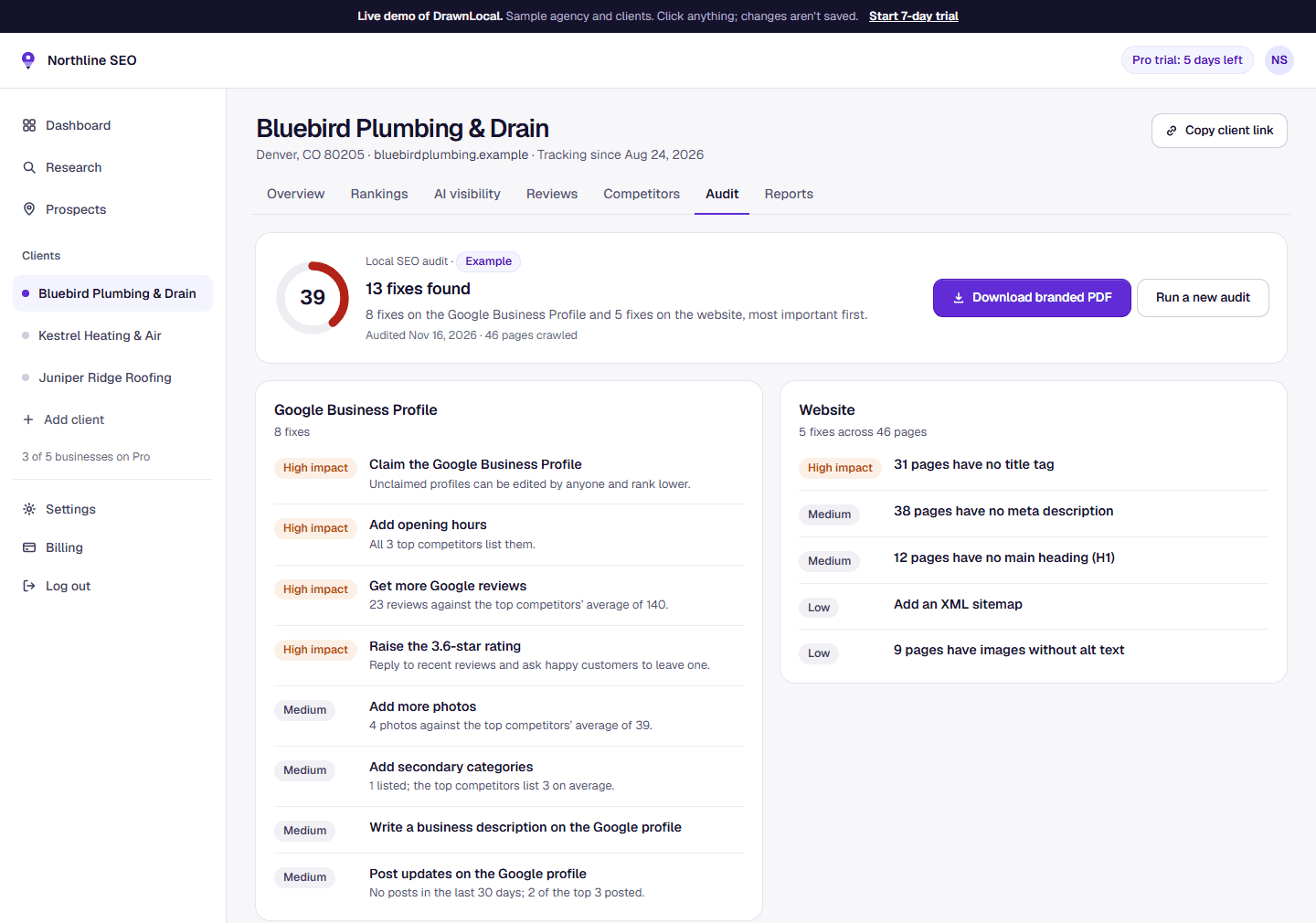
With manager access in place, audit the profile before any edit: category, name, hours, services and photos against the top three competitors. Fix the heaviest items first, and note the date of each change so the report can show what moved afterwards.
When a client leaves: hand back access cleanly
A clean exit protects your reputation and keeps you inside Google’s rules. Within 7 business days of the client’s notice:
- Confirm the business holds primary ownership.
- Remove the agency’s own access from the profile, and from the website, Search Console and Analytics.
- Remove the profile from any agency groups or organization account.
- Send the client a short summary: what was changed, where things stand, and the last report.
- Note the end date in your access tracker.
Keep the client’s data separate after they leave, as during the contract. Google’s policy forbids sharing one client’s Business Profile data with another.
Managing access across many clients
As the agency grows, the risk shifts from getting access to keeping track of it. One agency account or organization account, one tracker, and a dashboard that shows every client in one place keep it under control:
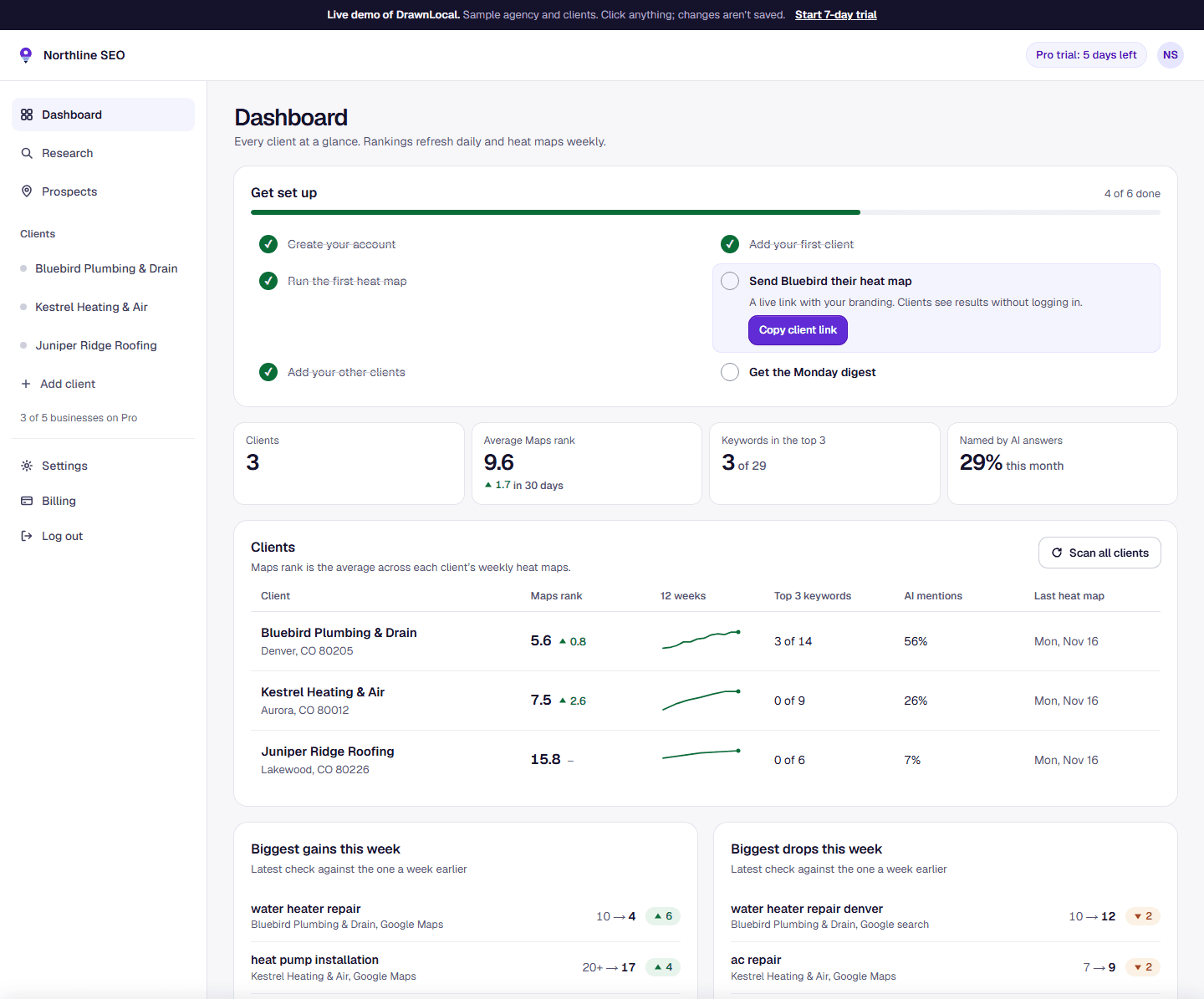
Give each staff member their own login everywhere, and remove it the day they leave. How to scale an SEO agency covers handing work to a team without sharing passwords.
What to do in the first week of access
- Check who else has access. Confirm the primary owner is someone at the business, and ask the owner to remove anyone they don’t recognize. Only owners can remove people.
- Expect a 7-day wait for sensitive actions. New owners and managers can’t remove a profile, remove other users or transfer primary ownership for their first 7 days.
- Record the baseline before you edit anything. You don’t need profile access to measure rankings: DrawnLocal’s heat maps, rank tracking and review tracking work from public search results. The first heat map can run while the invite is still pending. Try a free heat map on any business.
- Audit the profile. The category, name, hours and services come first; our local SEO audit checklist lists the 30 checks in order.
Access is one line of a longer first fortnight; the local SEO client onboarding checklist covers the rest, from the questionnaire to the 90-day plan.
Questions
Should an agency be an owner or a manager of a client’s Business Profile?
A manager. Google’s third-party policy says the business must keep ownership or co-ownership at all times, and asks agencies to be invited as managers. Managers can edit everything day-to-day local SEO needs.
How long does a Google Business Profile access request take?
The current owner is emailed and has 3 days to respond. If they don’t, Google may offer the option to claim the profile from the confirmation email, though not in every case.
Can a manager change the business name or category?
Yes. Managers have mostly the same access as owners, including the name, category, website, hours, photos and reviews. They can’t add or remove users or remove the profile.
Why can’t I remove a user after becoming an owner?
Anyone who becomes an owner or manager waits 7 days before they can remove a profile, remove other owners or managers, or transfer primary ownership.
What if a previous agency won’t give the profile back?
Ask in writing first: Google’s third-party policy gives agencies 7 business days from a client’s notice to return exclusive control. If that fails, the owner can use Request access, and Google accepts complaints about agencies that break its policies.
Sources
- Google Business Profile Help: manage owners and managers
- Google Business Profile Help: request ownership of a Business Profile
- Google Business Profile Help: overview for agencies
- Google Business Profile Help: third-party policies